Photographic workflow – Part 4 ….. the print is the performance.
The great Ansel Adams is quoted as saying:
“The negative is the equivalent of the composer’s score, and the print is the performance“
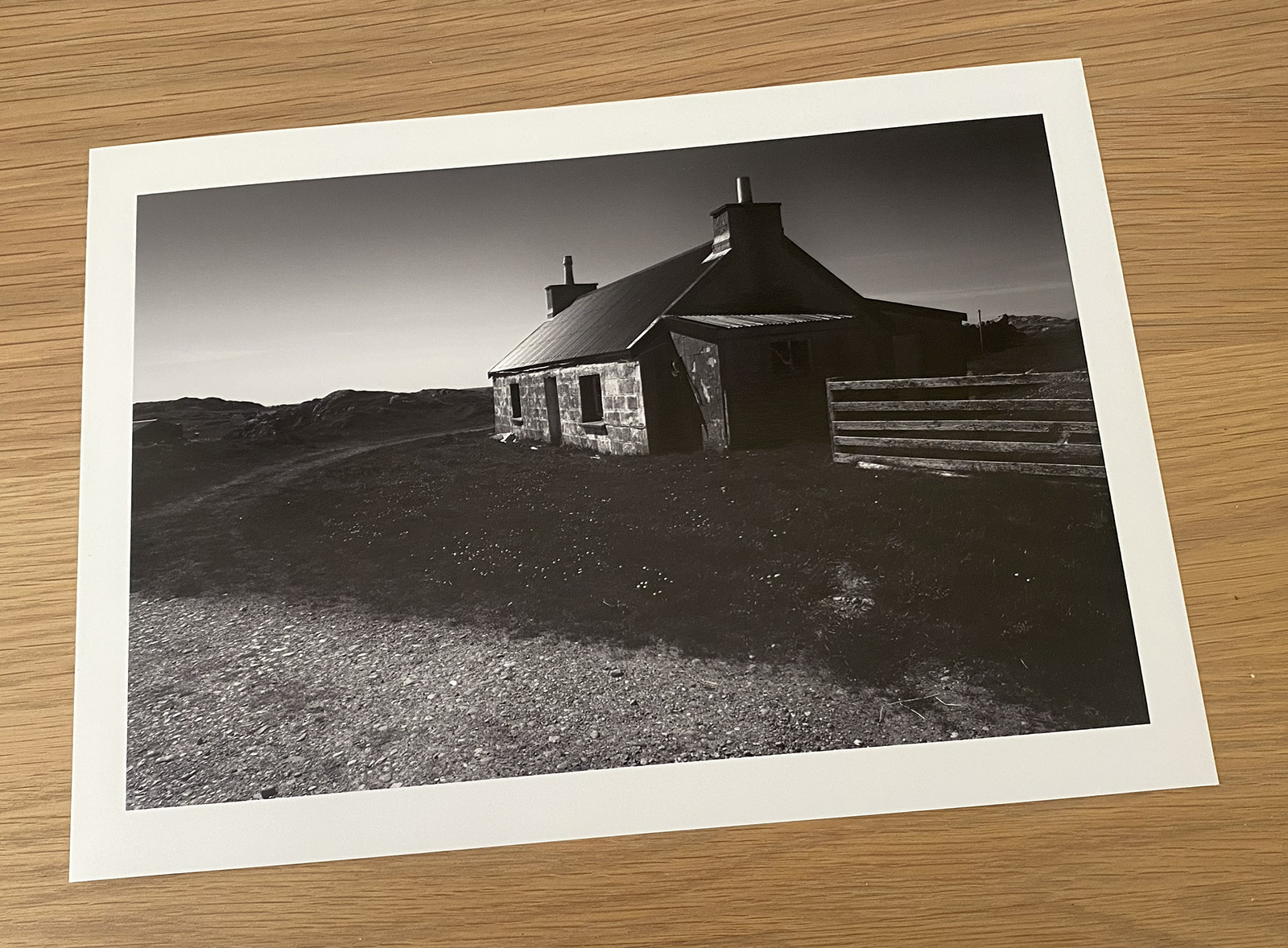
Or in this digital age, you can replace the word negative with digital or RAW file.
I can think of no better way to sum up the importance of printing your photographs. In the days of film (which still applies of course) any negative worthy of presentation was printed in the darkroom. Bathed in red light there was an air of anticipation and excitement, as the photographer gently washed developer fluid over the paper. And as if by magic the image would slowly start to appear.
The art of photography is only complete when the image appears on a sheet of photographic paper. This is when the captured image finally comes to life. You can hold it in your hand, feel the surface and weight of the paper and pass it around for others to see and enjoy. Leaving a processed image on a hard drive is no different to storing the negative strip in an envelope which never sees the light of day. In my opinion an excellent photograph, or just one of your favourites, should be printed.
In Part 4 of this series on photographic workflow I want to write about printing. This post has been delayed as I decided to buy a new printer which arrived this week and I thought it might be interesting to share with you the reasons why I chose an Epson SC-P700. I will go through how it is set up, the software I use for printing, my paper selection and lastly making the print.
( I have added the links to Parts 1, 2 and 3 of my photographic workflow at the end of the entry)
After a little research I decided the right printer for my purposes would be the Epson SC-P700. An A3+ photo printer using pigment inks. It’s quite compact and I liked its functionality. Ten or more years ago I bought an Epson 3880 A2 printer. It is still working but I don’t have the space for it in the room where I use my computer equipment. Besides my wife wanted a printer for her artwork, so I decided to treat myself.
I no longer want to print as large as A2, A3+ is plenty large enough. In additon to its reduced size and weight, perhaps the biggest advantage of the P700 over the 3880, is that it has separate ink feeds for the Photo Black and Matte Black ink cartridges. The Epson 3880 has one feed for both these cartridges. This means that whenever you want to switch between a gloss and a matte paper, the printer would have to change the feed from one cartridge to the other. It took time and in the process wasted a lot of ink.
I am still getting to know the new printer but I like the fact it has a semi-opaque top cover with a built-in light. This allows you to see the photograph as it’s being printed. It’s not as magical as being in darkroom but I enjoy it all the same. I no longer have to wait until the paper re-appears at the front of the machine to see how things are going. I also appreciate the pop up screen. It’s good quality and the touch menu is easy to navigate. Far more intuitive to use than the buttons and menu of the Epson 3880. It even gives you a historical readout of the prints you have made, the date and time it was printed and the settings used. Very useful. Time has moved on and you would expect the functions of a printer to improve and they have been with the P700.
I won’t go into any more detail about my decision making process, but I would like to thank Keith Cooper of Northlight Images for his incredibly helpful website and YouTube Channel. A commercial photographer based in the UK, what Keith doesn’t know about digital printing isn’t worth knowing. I have learned a huge amount from his insightful and very comprehensive articles and videos. There is a link below to his review of the Epson SC-P700 which includes a very useful section on how to set up the machine.
Out of the box to making my first print took me about an hour and a half. It connected to my WiFi network without any problem at all. Another big plus as I no longer have a long lead trailing across the carpet for me to trip over! Overall it was quite straightforward although I did need to delete and reinstall the Epson Print Layout software for it to recognize the printer. Once I had done this I was good to go.
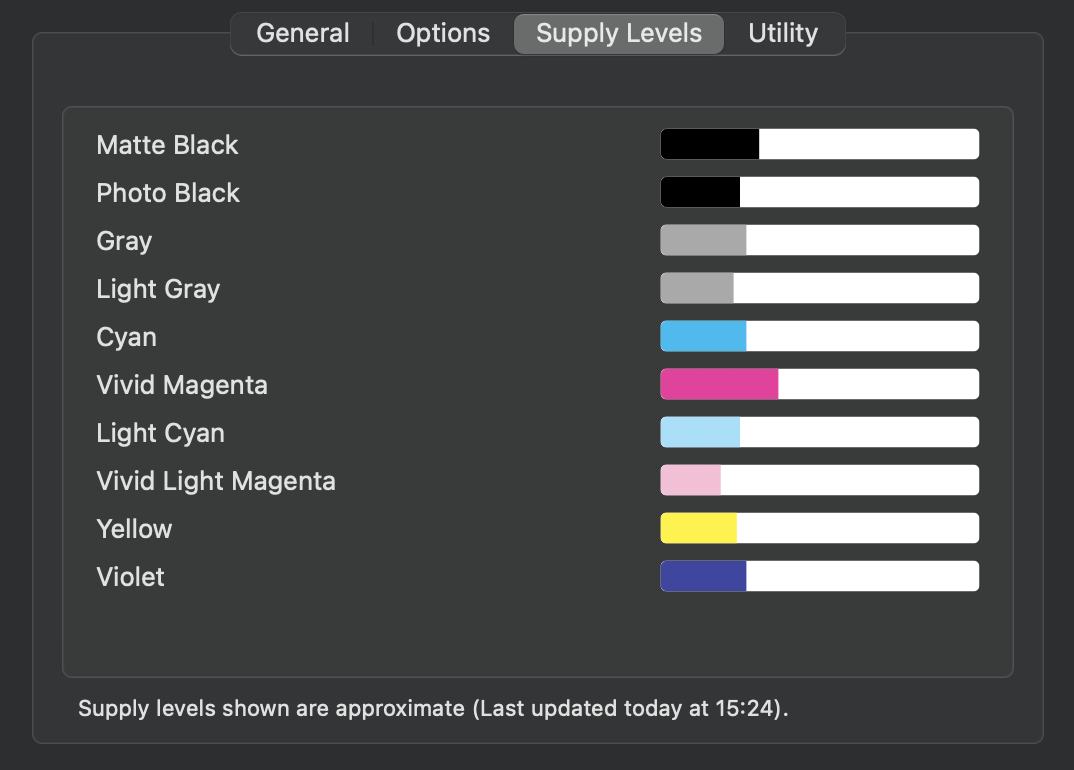
One further point – having installed the ink cartridges the initialization process takes about 15 minutes and Epson are quite transparent when they say this uses quite a lot of ink. The supplied cartridges are not full of ink out of the box, so I was quite pleased to see the remaining supply levels once the printer was set up. As I will rarely be printing in colour I just bought spare cartridges of the four Black/Gray inks. There should be sufficient colour ink to last me for quite a while. Keep in mind that even a black and white print will use some of the colour ink. Epson also supplies a spare maintenance tank, as the one included fills up quite quickly during the initialization apparently.
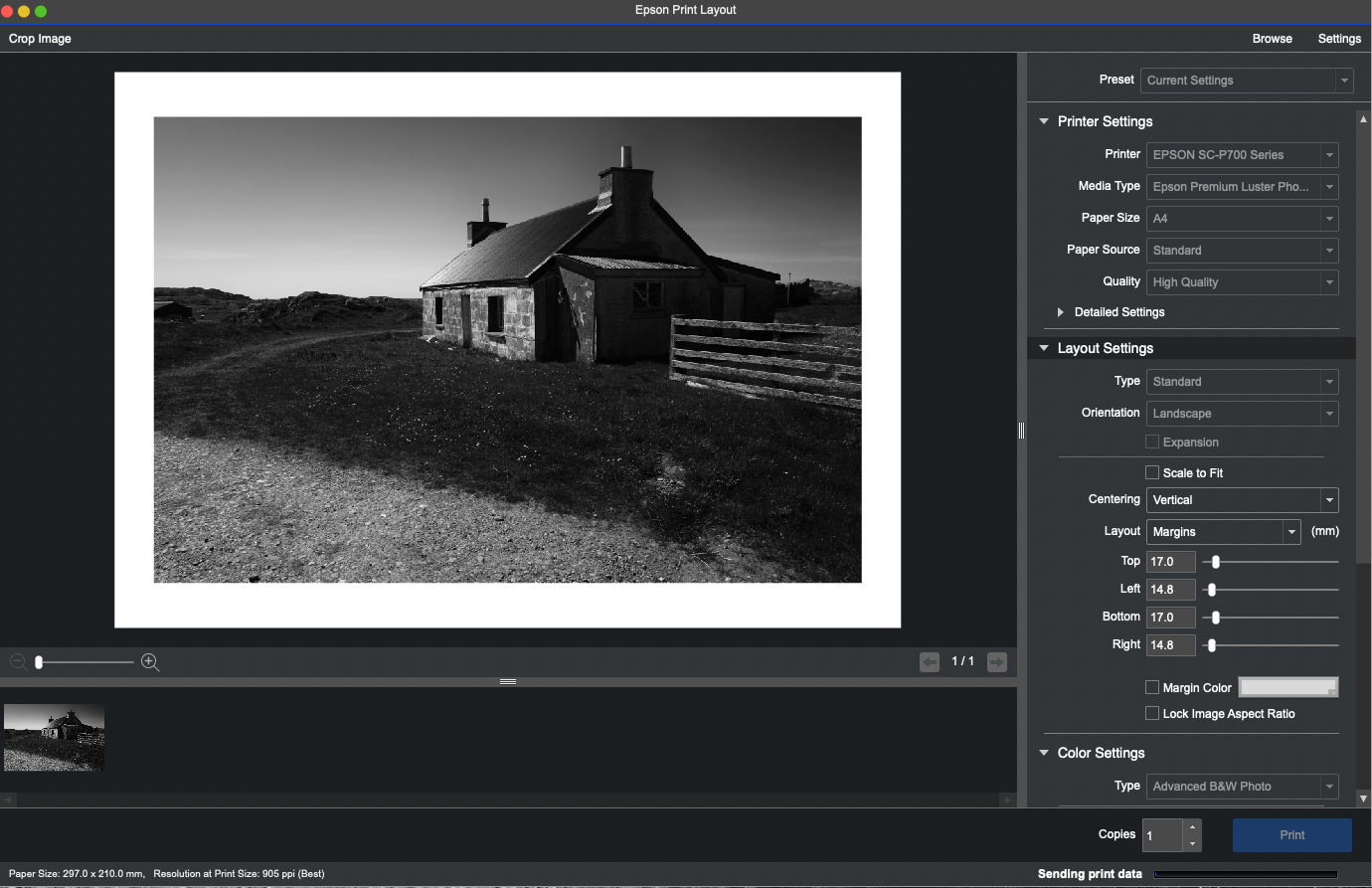
There are many ways to print from Photoshop, Lightroom, Affinity Photo or indeed Capture One which is my preferred RAW processor. However I think the simplest solution, and it suits my workflow, is to use Epson Print Layout. You can find out more about it and download the right version for your computer and operating system here – Epson Print Layout .
From Capture One I can select an image then ‘Open with’ Epson Print Layout. I have already ‘baked in’ all my adjustments and created a Tiff file. If this is not the case then to carry any adjustments across to Epson Print Layout which have been made in Capture One I need to ‘Edit with’. From there it’s simply a case of selecting the media type, paper size and so on. I then use the Advanced B&W Photo settings which are again very straightforward to use for printing in monochrome of course. I have rarely, if ever, used an ICC Colour Profile. In my opinion it’s just not necessary to get a truly great black and white print.
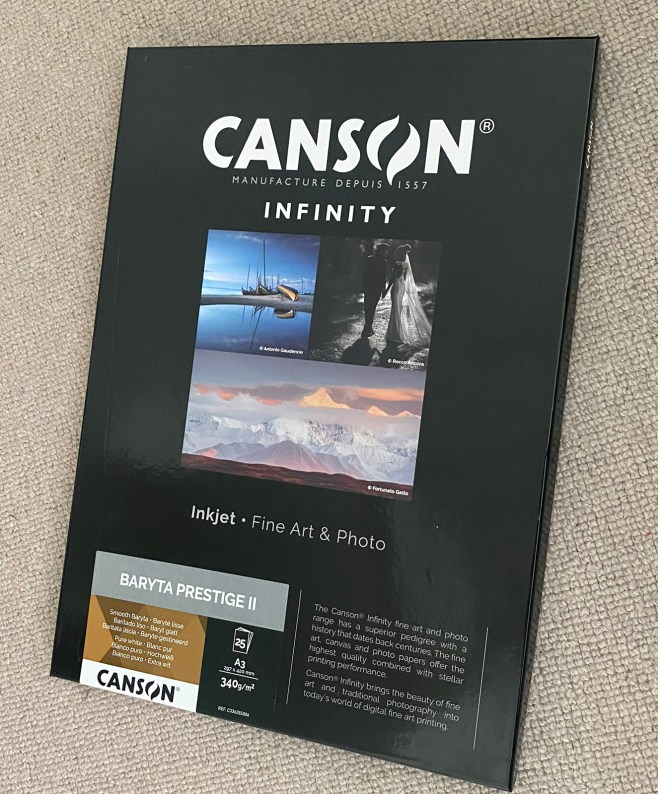
Before printing I had to choose the type of paper for the photos I want to print. Sounds obvious of course, but making the right choice has a significant bearing on the look of the finished photograph. There is a bewildering selection of papers from many manufacturers. They all offer a range of glossy, lustre, matte, fine art papers and the list goes on. Some have a slight texture and some are more suited to black and white than others. Test packs of various papers are useful but for the work I want to print I was looking for a paper that perhaps best mimicked a paper that would have been used in the darkroom. I selected a Baryta Paper by Canson, pictured here. (Baryta Prestige II). I have used Canson papers in the past and always liked the results. It’s quite a thick heavyweight paper at 340gsm, so it feels substantial in the hand.
Having set up the machine I ran a quick test using an ordinary sheet of plain A4 paper. I ran this through the printer just to make sure it was working correctly. This gave me the confidence to use a sheet of Canson paper for my first print. I couldn’t have been more pleased with the result.


For more information about printing on Baryta type papers do watch the video below. Again it’s by Keith Cooper of Northlight Images, and is well worth sparing some of your time. So too is the video giving his advice on Advanced B&W Fine Art Printing.
The next stage, and one which presents quite a challenge, is choosing which images to print. I know this is going to prove difficult as the cost of printing can’t be ignored. I will have to be quite ruthless in my selection and only print my favourite images. I did print a lot when I was submitting pictures for club competitions or on the few occasions I was going to exhibit my work. Those days are behind me now, so I simply want to print a selection of images for my own pleasure. I could have sent them to a photo lab but I much prefer printing my work. I feel more in control of the finished result.
I intend starting with a project which has been ongoing for some time now. Images of the Dorset landscape close to where I live. I had already printed contact sheets onto sheets of A3 paper as shown below. There are 140 photographs and more are still be captured. At a little over £3 per A3 sheet, not to mention the cost of the ink, printing all of them would be a very expensive exercise! I may decide to print more than one photograph per sheet. Epson Print Layout works well in this regard as you can easily set up and save templates for repeated use.

This post is already a rather lengthy one, and I am beginning to think the topic of collation, final selection, preparation for print, presentation and storage is a subject in its own right. So there may well be a Part 5 to this Photographic workflow series.
For now I hope you have found this post interesting and if you wish to look at Parts 1, 2 and 3 here are the links below.
Photographic workflow – Part 1 ….. Seeking inspiration
Photographic workflow – Part 2 ….. Image Capture ….. and why I chose to buy a Leica Q3
Photographic workflow – Part 3 ….. Processing in the digital darkroom ….. the before and after
Lastly let me remind you of where I started. To paraphrase Ansel Adams –
“The Raw file is the equivalent of the composer’s score, and the print is the performance.”
 alan frost photography